
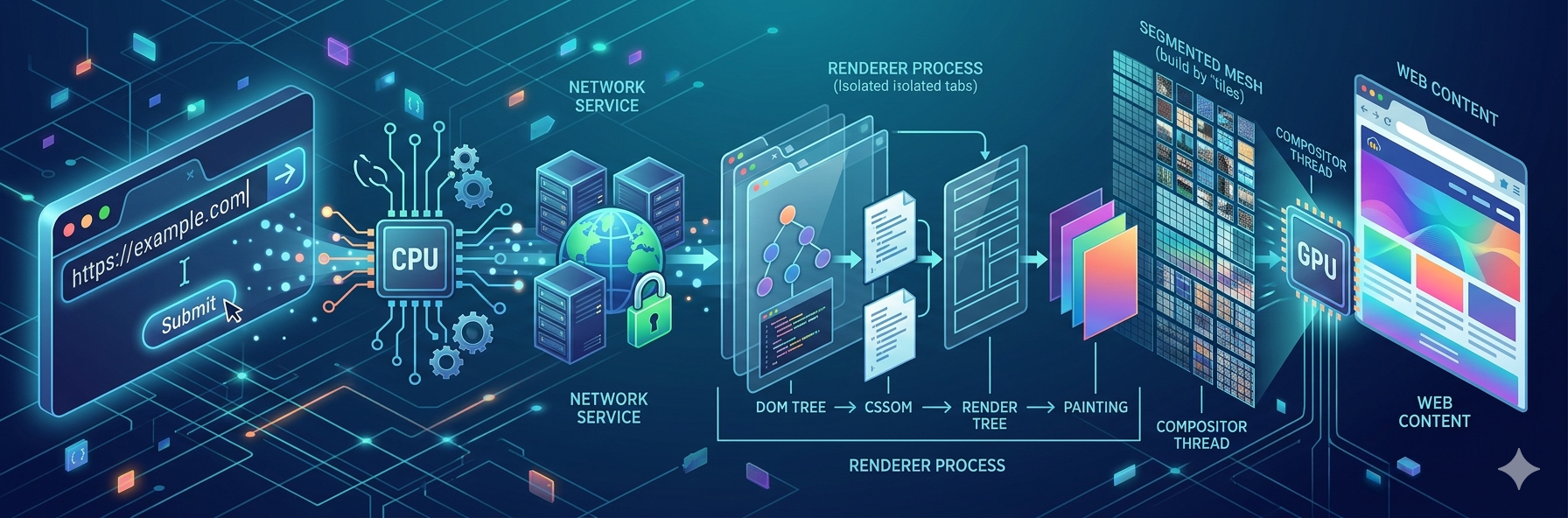
Inside the Black Box: How a Browser Translates a URL Into a Visual Masterpiece
Have you ever paused to think about what actually happens when you type a URL into your browser address bar and hit enter? To most users, and honestly, to many developers, it feels like magic. You request a page, a loading spinner flashes for a fraction of a second, and boom—a fully interactive, beautifully styled web page appears.
But beneath that smooth surface lies one of the most complex, highly engineered pieces of software on the planet. Modern web browsers are essentially mini-operating systems. They manage hardware, coordinate complex distributed processes, orchestrate sandboxed security boundaries, and execute asynchronous graphics pipelines—all within milliseconds.
If you want to master web performance optimization, tackle metrics like Interaction to Next Paint (INP), or truly understand how your code executes, you have to peer inside this black box. Let’s take a deep dive into the internal architecture of modern browsers and trace the journey of a pixel from the network socket straight to your screen.
1. The Hard Core: Hardware, Processes, and Threads
Before we talk about HTML or CSS, we need to understand the computer hardware and software architecture that powers the browser.
CPU vs. GPU: The Engine and the Rocket
At the physical layer, the browser relies on two primary hardware components:
- The CPU (Central Processing Unit): The brain of your computer. The CPU is a versatile powerhouse designed to handle a massive variety of tasks sequentially. It excels at complex logic, managing state, handling arithmetic, and executing your JavaScript code.
- The GPU (Graphics Processing Unit): The muscle. Unlike the CPU, which handles complex tasks one by one, a GPU is made of thousands of smaller, simpler cores designed to handle massive parallel mathematics. It was originally built for 3D games, but modern browsers use it to calculate pixel matrices, textures, and image compositing at breakneck speeds.
Processes and Threads: Boundaries and Workers
When you launch an application, the operating system starts a Process. Think of a process as a self-contained workspace. It is given its own private sandbox of memory that no other process can touch.
Inside that process run one or more Threads. Threads are the actual workers that execute code. Since they live inside the same process, they share the same memory space.
Early web browsers used a Single-Process Architecture. The entire browser—the UI, the network stack, the tabs, and the JavaScript engine—all ran in one single process. This architecture had massive flaws:
- Instability: If a single tab hit an infinite loop or crashed, it corrupted the entire shared memory space. The whole browser died, losing all your other open tabs.
- Security Risks: Because there were no memory boundaries, code running in a malicious tab could theoretically access data inside another tab or read system files.
- Performance Congestion: All tabs competed for the exact same thread, leading to constant freezing.
The Modern Solution: Multi-Process Architecture
To fix this, modern browsers (like Chromium-based browsers) moved to a Multi-Process Architecture. Instead of one monolithic entity, the browser splits its duties across multiple dedicated processes:
- Browser Process: The captain of the ship. It controls the "browser chrome" (the address bar, back/forward buttons, bookmarks). It also coordinates high-level operations like creating other processes, managing network requests, and handling file access.
- Renderer Process: The artist. This process is responsible for everything that happens inside a tab. It turns HTML, CSS, and JavaScript into a visual web page. By default, the browser spins up a brand-new Renderer process for every single tab (or sometimes per site origin) to keep them completely isolated.
- GPU Process: The painter. It handles graphics rendering tasks in isolation. It takes draw instructions from other processes and executes them on the GPU hardware.
- Plugin Process: Controls any external plugins used by the browser.
- Network Process: Handles all network networking logistics, fetching resources from the web via protocols like HTTP/S, WebSocket, or WebRTC.
The Next Evolution: Servicification
To make things even more efficient, modern browsers are undergoing a architectural shift called Servicification.
Instead of hard-coding separate processes, the browser’s internal components are designed as independent, modular Services. When the browser runs on powerful hardware, it splits these services into separate OS processes for maximum stability and security. However, if it detects that it's running on a low-memory, resource-constrained device (like an entry-level smartphone), it intelligently collapses multiple services (like the Network and Browser services) into a single process to save RAM.
2. The Navigation Pipeline: From URL to the Renderer
Now that we know who the actors are, let’s trace what happens when you type https://example.com into the address bar (known as the Omnibox) and hit Enter. This entire phase is orchestrated by the Browser Process.
Step 1: Input Handling & Search Detection
The moment your keystrokes hit the Omnibox, the UI thread checks what you typed.
- Is it a valid URL (e.g.,
https://google.com)? - Or is it a search query (e.g., "how does a browser work")?
If it's a search query, the UI thread appends your query to your default search engine's URL. If it's a valid URL, it initiates a connection.
Performance Tip: While the browser is parsing this, it may fire up a DNS pre-fetch or an unloading check on the current page to clear the path, anticipating that navigation is about to happen.
Step 2: Initiating the Network Journey
The UI thread hands the destination URL over to the Network Process.
The Network Process executes a sequence of complex low-level network steps:
- DNS Lookup: It translates the domain name into an IP address.
- TCP Connection: It opens a socket and completes a 3-way handshake with the server.
- TLS Negotiation: If the URL uses HTTPS, it establishes an encrypted cryptographic session.
Once the connection is secure, the Network Process sends an HTTP GET request. The server processes the request and responds with a status code (like 200 OK) along with response headers and the payload data.
Step 3: Content-Type Sniffing & Security
When the network payload begins arriving, the Network Process looks closely at the Content-Type header of the response.
If the server responds with a file download (like application/zip), the Network Process routes the stream directly to the browser's download manager, terminating the navigation flow.
However, if the Content-Type is text/html, the browser knows it's about to render a web page. Before moving forward, the Network Process runs a security check called Safe Browsing. If the domain matches a known malicious, phishing, or malware site, it halts everything and displays a bright red warning page.
Step 4: Committing the Navigation
Once the HTML data is confirmed safe and ready, the Network Process tells the Browser Process UI thread that the data is primed.
The Browser Process immediately finds or spins up a dedicated Renderer Process for this site. Once the Renderer is active, the Browser Process sends an Inter-Process Communication (IPC) command to Commit the Navigation.
This message passes the active network data stream directly from the Network Process to the Renderer Process so it can read the incoming HTML. The browser UI updates: the address bar shows the secure lock icon, the page history updates (enabling the back button), and the tab spinner begins to rotate.
3. The Rendering Pipeline: Turning Code into Pixels
Once the Renderer Process receives the committed navigation message, it takes total control of your tab. The Renderer Process contains two critical components: the Main Thread and the Compositor Thread.
The main thread handles almost all of your code. It runs through a highly structured multi-stage execution pipeline to turn text into pixels.
Stage 1: Constructing the DOM (Document Object Model)
The Renderer Process takes the raw network stream of HTML bytes and decodes them into characters. The HTML Parser then reads these characters tokens and converts them into an object graph called the DOM Tree.
The DOM tree is the browser's internal object representation of your page structure. JavaScript interacts directly with this tree.
[Image showing HTML tokens transforming into a hierarchical DOM tree structure]
The Pre-load Scanner Optimization
As the HTML parser reads the document line by line, it stops completely whenever it encounters a script tag (<script>). It has to stop because the script might run document.write(), which completely alters the remaining HTML structure.
To prevent this blocking from delaying resource downloads, browsers run an auxiliary thread called a Pre-load Scanner in parallel. While the main thread is blocked parsing or waiting for a script, the Pre-load Scanner rushes ahead through the rest of the HTML looking for external resource tags like <img>, <link>, or <script src="...">. It safely hands these URLs off to the Network Process to download them early in the background, slashing asset loading times by up to 40%.
Stage 2: Constructing the CSSOM (CSS Object Model)
While the DOM is being built, the parser encounters <link rel="stylesheet"> tags or inline <style> blocks. The browser requests these styles, and the CSS parser processes them into the CSSOM Tree.
The CSSOM defines exactly how styles apply to different nodes. The browser runs a complex operation called Selector Matching and Style Computation. It processes cascading rules, inheritance (e.g., a body font size trickling down to a p), and specificity to calculate a definitive set of final style properties for every single element on the page.
Stage 3: Building the Render Tree
Now, the browser combines the DOM and the CSSOM into a single unified data structure: the Render Tree (also known as the Layout Tree).
[Image representing the merging of a DOM tree and CSSOM tree into a Render Tree]
The Render Tree is a blueprint of everything that will actually be visible on the screen. It maps the visual structure of the page:
- It starts at the root of the DOM tree and traverses visible elements.
- If an element has
display: none;applied to it in the CSSOM, the element and all its children are completely excluded from the Render Tree because they occupy zero physical space. - Note: Elements with
visibility: hidden;are included in the Render Tree because they take up physical space on the page, even though they are invisible.
Stage 4: Layout (Reflow)
We have a list of visible elements and their styles, but we don't know where they sit on the screen yet. The browser now kicks off the Layout phase.
The Layout engine traverses the Render Tree starting from the top. It calculates the geometry, coordinates, and exact bounding box sizes of every element relative to the browser viewport. It handles things like margin collapsing, text wrapping, and flexbox auto-sizing.
Performance Danger: Layout is an incredibly expensive CPU operation. If you dynamically alter an element's width, height, or positioning via JavaScript, you trigger a Rellow/Layout event, forcing the CPU to recalculate the positions of that element and potentially the entire rest of the document.
Stage 5: Paint (Rasterization)
Knowing the coordinates isn't enough; we need to know the drawing order. If your elements overlap, have backgrounds, or use z-index, drawing them out of order will result in a visual mess.
The main thread runs through a Paint phase. It generates a sequential list of drawing notes called Paint Records (e.g., "Draw a blue rectangle at x:10 y:20, then write text 'Submit' in white font inside it").
[Image showing a sequence of layer painting steps like background, text, borders]
Moving to the GPU: Rasterization
Once the paint records are generated, they must be converted into a grid of actual color pixels that your screen can display. This conversion is called Rasterization.
In old browsers, this rasterization happened directly on the CPU for the entire visible page area. However, if a user scrolled rapidly, the CPU couldn't paint fast enough, resulting in temporary blank areas or checkerboarding. Modern browsers handle this through a technique called Compositing.
4. The Grand Finale: Compositing and the GPU
Instead of flattening the entire page into a single massive image, the browser cuts the page up into distinct, isolated Layers.
Step 1: Layer Creation
The Main Thread analyzes the layout and paint records to determine if any elements should live on their own graphic layers. It looks for specific CSS properties that indicate an element will animate independently, such as:
transformopacitywill-change- Elements with their own hardware-accelerated
<video>or<canvas>context.
These special elements get promoted to independent layers.
Step 2: Tiling and the Compositor Thread
Once the layer tree is mapped out, the Main Thread hands this data over to the Compositor Thread.
The Compositor Thread doesn't block your UI. Its job is to manage how layers move together when a user scrolls or animates the page. Because web pages can be incredibly long, rasterizing an entire webpage layout layer at once wastes vast amounts of memory.
To optimize this, the Compositor Thread breaks down each large layer into smaller sections called Tiles.
The Compositor Thread passes these individual tiles down to the GPU Process via IPC. The GPU hardware takes these tiles and runs high-speed parallel rasterization, converting them into bitmaps stored directly in GPU memory.
Step 3: Draw Quad and Display
Once all the tiles for the current viewport are rasterized in GPU memory, the Compositor Thread calculates a set of instructions called Draw Quads. These instructions contain the memory pointers to the GPU bitmaps and define exactly where to map each tile on the screen, taking scrolling positions and scale transforms into account.
The Compositor Thread bundles these Draw Quads into a Compositor Frame and fires it over to the GPU Process. The GPU executes a hardware command called an On-Screen Draw, compositing all the independent layers together into a single cohesive frame on your hardware monitor.
Your page has officially rendered.
5. Summary of the Pixel Pipeline
When a user scrolls the page or an animation triggers, this rendering loop fires up again. Depending on what properties your code changes, the browser takes one of three optimization paths:
| Changed Property | Pipeline Path Executed | CPU/GPU Cost |
|---|---|---|
Layout Mutators (width, margin, top) | Layout -> Paint -> Composite | Extremely High (Forces full page geometry recalculations) |
Paint Mutators (background-color, box-shadow) | Paint -> Composite | Medium (Skips geometry, but forces re-painting pixels) |
Composite Mutators (transform, opacity) | Composite | Extremely Low (Skips CPU entirely; handles everything on the GPU) |
By writing code that targets the Compositing-only path, you bypass the CPU entirely, avoiding main-thread bottlenecks and unlocking 60fps silk-smooth web interactions.
Architectural Takeaways for Developers
Understanding the multi-process architecture changes how you evaluate web application performance:
- Don't Block the Main Thread: Since JavaScript parsing, DOM building, Layout, and Paint all share the Main Thread inside the Renderer process, a long-running synchronous JavaScript block will completely freeze the layout pipeline. This spikes your Interaction to Next Paint (INP) metric and makes your app feel completely unresponsive.
- Isolate Expensive Work: If you must handle heavy mathematics or data processing, move those calculations out of the main rendering loop by leveraging Web Workers. Web Workers spin up an independent thread inside the process, leaving the Main Thread clear to keep handling layout and user input smoothly.
- Animate Responsibly: Use CSS
transform(for translation, scaling, or rotation) andopacityinstead of messing with properties liketop,left, orheight. This ensures your animations execute entirely within the Compositor thread and GPU hardware, preventing expensive layout reflow loops.
The next time you open a blank tab and type a web address, remember the hidden dance of processes, threads, tiles, and hardware layers working perfectly together behind the screen to deliver your web content in the blink of an eye.